Tuesday, November 19, 2013


Monday, November 11, 2013
Playstation 4 Teardown video
I never owned a Playstation. uhm... I'm a PC gamer since 1991, the year Wing Commander II was released.
But hey, this particular Playstation 4 teardown video caught my attention today!
It is well done, and produced by the creators themselves - quite an intelligent marketing move if you ask me.
But hey, this particular Playstation 4 teardown video caught my attention today!
It is well done, and produced by the creators themselves - quite an intelligent marketing move if you ask me.
Sunday, November 10, 2013
Saturday, September 07, 2013
Parkour POV
You don't know Mirror's Edge, you don't know what POV stands for? Don't care about it.
just enjoy,
just wow...
(did some building climbing at the age 9 through 14, the pov vid brought back good memories)
just enjoy,
just wow...
(did some building climbing at the age 9 through 14, the pov vid brought back good memories)
Wednesday, September 04, 2013
Here's the Xperia Z1
finally officially announced ... the premium Xperia Z1. Everything sounds perferct - and judging by our Xperia Z experience, everything IS perfect.
.
.
.
.
.
.
Fake Canon Flash
Hey Photo Enthusiast. Follow the link to an unbelievable read about a Canon Fake Flash. Not just any model but an EX 580 II >> Story of a fake Canon Flash @ PetaPixel
Ten years ago I flew to Hong Kong just to pick up my photo gear, man this news is just off!

Ten years ago I flew to Hong Kong just to pick up my photo gear, man this news is just off!

image source is the article linked above
Saturday, August 31, 2013
Good Mouse for Photoshop
Which mouse is a good Photoshop Mouse? Simple answer:
Your best gaming mouse is also your best Photoshop mouse.
That is because gaming mice come with many fully configurable buttons and feature an ergonomic form for long sessions, they are precise and have durable build quality.
Remember: good mice and good keyboard boost your productivity more than a faster CPU does. So don't be obsessed on saving money when it comes to the mouse!
When working through series of pictures the right commands on the mouse can easily save you many hours of time!
Currently my favorite mouse for work is the Logitech G700. It's fully customizable and all buttons are placed where I like 'em.

The general approach to assign the mouse with actions:
- understand that this topic is highly individual
- observe your own Photoshop usage closely
- take notes of the actions you perform the most in your workflow
- decide which actions you want to access with a mouse click
- look up the corresponding keyboard shortcuts here or just google them
- configure your mouse , sometimes it's possible to form groups of actions (ie always the same 3 actions for picture tweaking form a cluster, place them on button G8 > G9 > G10)
- create a cheat sheet because things might be hard to memorize in the beginning
> get inspiration from the net! to tune up your workflows
Other tools which might make your Photoshop life easier are:
- a Surface Pro as an affordable alternative to the very expensive Wacom Cintiq
- a must: wacom tablet ($100+) for retouching and painting
- keyboard stickers for professionals (not for me, because I use around 15 shortcuts only)
- a gaming keyboard where you can assign more functions to shortcut keys (not for me either because they look childishly ugly most of the time)
- your tablet > see this older video. I don't have any experience with this

Your best gaming mouse is also your best Photoshop mouse.
That is because gaming mice come with many fully configurable buttons and feature an ergonomic form for long sessions, they are precise and have durable build quality.
Remember: good mice and good keyboard boost your productivity more than a faster CPU does. So don't be obsessed on saving money when it comes to the mouse!
When working through series of pictures the right commands on the mouse can easily save you many hours of time!
Currently my favorite mouse for work is the Logitech G700. It's fully customizable and all buttons are placed where I like 'em.

The general approach to assign the mouse with actions:
- understand that this topic is highly individual
- observe your own Photoshop usage closely
- take notes of the actions you perform the most in your workflow
- decide which actions you want to access with a mouse click
- look up the corresponding keyboard shortcuts here or just google them
- configure your mouse , sometimes it's possible to form groups of actions (ie always the same 3 actions for picture tweaking form a cluster, place them on button G8 > G9 > G10)
- create a cheat sheet because things might be hard to memorize in the beginning
> get inspiration from the net! to tune up your workflows
Other tools which might make your Photoshop life easier are:
- a Surface Pro as an affordable alternative to the very expensive Wacom Cintiq
- a must: wacom tablet ($100+) for retouching and painting
- keyboard stickers for professionals (not for me, because I use around 15 shortcuts only)
- a gaming keyboard where you can assign more functions to shortcut keys (not for me either because they look childishly ugly most of the time)
- your tablet > see this older video. I don't have any experience with this
Here's my own cheat sheet from 2008 / Photoshop CS3
(uhm shortcut missing is Ctrl+T to show layer handles)

Logitech G602 Mouse announced
Some of you know that I use Logitech mice since 20 years now. To me the G700 and the Performance MX are close to perfect productivity boosters. The buttons are at the right place, the scroll wheel is phenomenal, the G700 driver an absolute charm.
Therefor I was rather excited to read about the new Logitech G602 mouse! Unfortunately the more I learn, the less happy I feel about the new product. First some pictures, then I'll explain.


My thoughts are:
+ many buttons
+ driver will allow full customization of all buttons
+ looks good and seems to feel ergonomic
+ many buttons
+ works with just one battery (to reduce weight)
+/- main feature long battery life - but has no meaning to me.
+/- I learned to be perfectly happy with G700s 1 day battery life
- four side thumb buttons are enough
- the mouse wheel is not tiltable
- no mouse wheel free spin
- for advertised capacity of 10 days high weight because of 2 batteries
- buttons G10 & G11 implementation inferior to G700
- meaningless laser and microswitch specs, because all competitors have it too
- Logitech please do some microswitch sealing instead
- nothing spectacular, nothing outstanding about it
Some of you might like 20 thumb buttons - it's a highly individual thing. I mainly use two or three profiles on my mice, one for work, one for gaming and a special Photoshop profile. It's a challenge to remember all the button assignments if you don't use them everyday. Only good I see in many thumb buttons are the options for "push to talk"and the like.
If the G700 wouldn't exist then the G602 might be a good option. Well I have to see, what my kids have say about it.
Therefor I was rather excited to read about the new Logitech G602 mouse! Unfortunately the more I learn, the less happy I feel about the new product. First some pictures, then I'll explain.

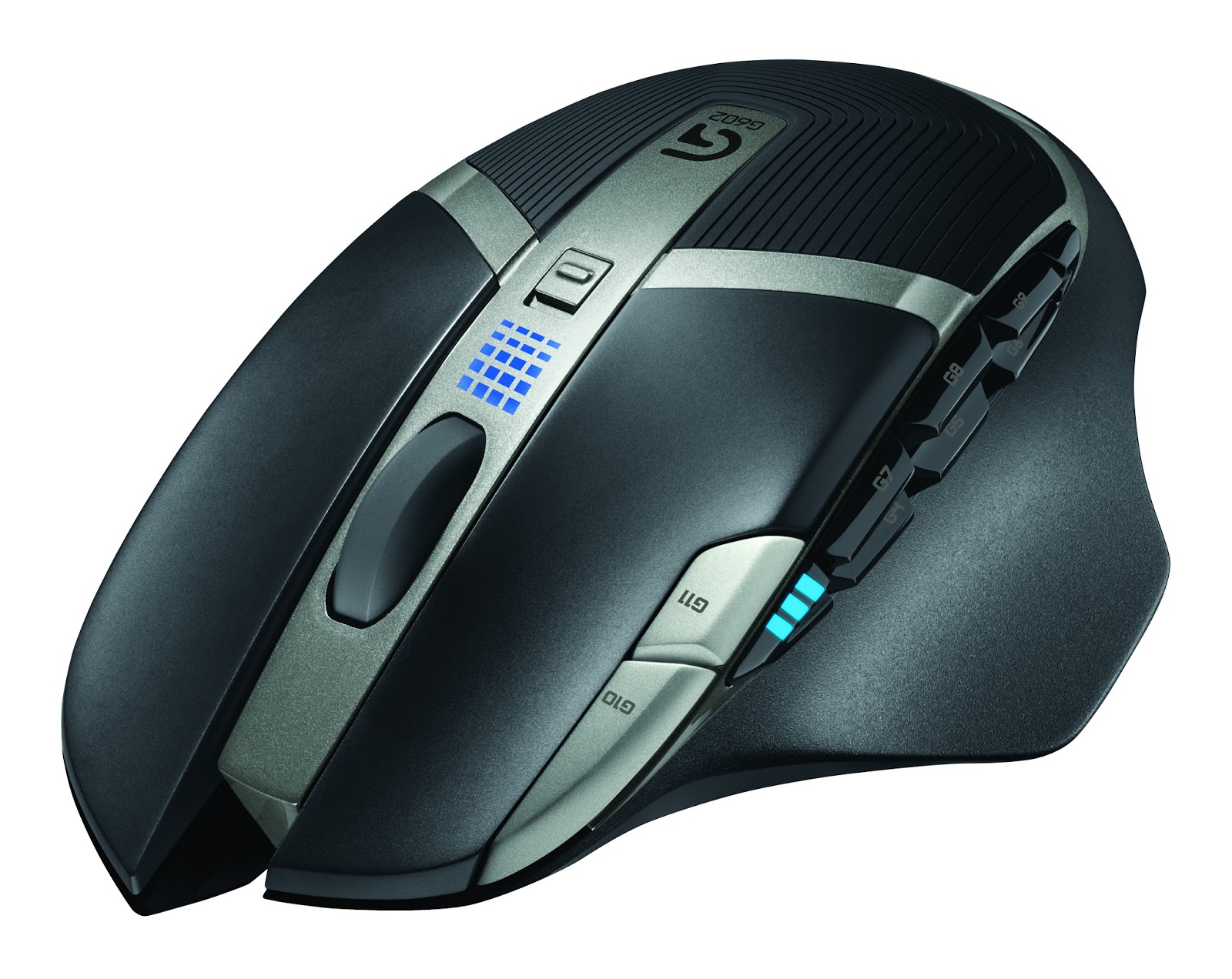


source of all images above: logitech.com
My thoughts are:
+ many buttons
+ driver will allow full customization of all buttons
+ looks good and seems to feel ergonomic
+ many buttons
+ works with just one battery (to reduce weight)
+/- main feature long battery life - but has no meaning to me.
+/- I learned to be perfectly happy with G700s 1 day battery life
- four side thumb buttons are enough
- the mouse wheel is not tiltable
- no mouse wheel free spin
- for advertised capacity of 10 days high weight because of 2 batteries
- buttons G10 & G11 implementation inferior to G700
- meaningless laser and microswitch specs, because all competitors have it too
- Logitech please do some microswitch sealing instead
- nothing spectacular, nothing outstanding about it
Some of you might like 20 thumb buttons - it's a highly individual thing. I mainly use two or three profiles on my mice, one for work, one for gaming and a special Photoshop profile. It's a challenge to remember all the button assignments if you don't use them everyday. Only good I see in many thumb buttons are the options for "push to talk"and the like.
If the G700 wouldn't exist then the G602 might be a good option. Well I have to see, what my kids have say about it.
Subscribe to:
Posts (Atom)